.png)
A New Way to Add Payments To Your DNB
Updated: Aug 14
If you’re building business credit, few things are more frustrating than paying real vendors on time—only to find those payments never show up on your Dun & Bradstreet (D&B) report. In A New Way to Add Payments to Your DNB, I explain how trade references and payment experiences actually get added to your file, why some vendors report automatically while others don’t, and how you can legitimately submit qualified payment history so it strengthens your PAYDEX score and overall D&B ratings. If you want your business to get credit where credit is due, this post walks you through a smarter, compliant way to get your payments reported and keep your D&B profile lender-ready.

Dun & Bradstreet has overhauled its data reporting framework, introducing a new streamlined "self-reporting" mechanism. Instead of waiting for vendors to manually report your data—which many never do—you can now proactively submit historical payment records from your existing vendors, suppliers, creditors, and service providers directly to your file.
If you want your existing payment history to get added to your D&B file, it's actually pretty simple — but only if you know what you are doing, how and when to do it, and you have the time and determination to track your progress on a daily basis. But now, by integrating these existing "trade references," you can see a more immediate and accurate reflection of your payment reliability, helping to strengthen your overall scores and ratings by up to 90%!
COMMON FAQs
What does it mean to “add payments” to your D&B file?
It means getting verified payment experiences (typically from vendors/suppliers) reflected in your D&B profile so your payment history is accurately represented.
Will adding payments automatically improve my PAYDEX score?
Not automatically. PAYDEX is driven heavily by payment timing and the quality/consistency of reported data—so results depend on what’s reported and how promptly you pay.
Do all vendors report payments to D&B?
No. Many vendors don’t report at all, and some report only to certain bureaus. It’s important to confirm reporting behavior rather than assume payments will appear.
What information needs to be consistent for payments to be credited correctly?
Your business identity details (legal name, address, phone, and identifiers) should match across your filings, vendors, and bureau records. Inconsistencies can cause delays or misattribution.
What documentation is typically needed to support payment reporting or verification?
Commonly: invoices showing terms, proof of payment, and vendor contact details for verification. Requirements vary depending on the pathway used to validate the payment experience.
How long does it take for new payment experiences to show up on a D&B report?
Timing varies. Updates can take days to weeks depending on verification and processing cycles, so it’s best to monitor the file and confirm the data posted accurately.
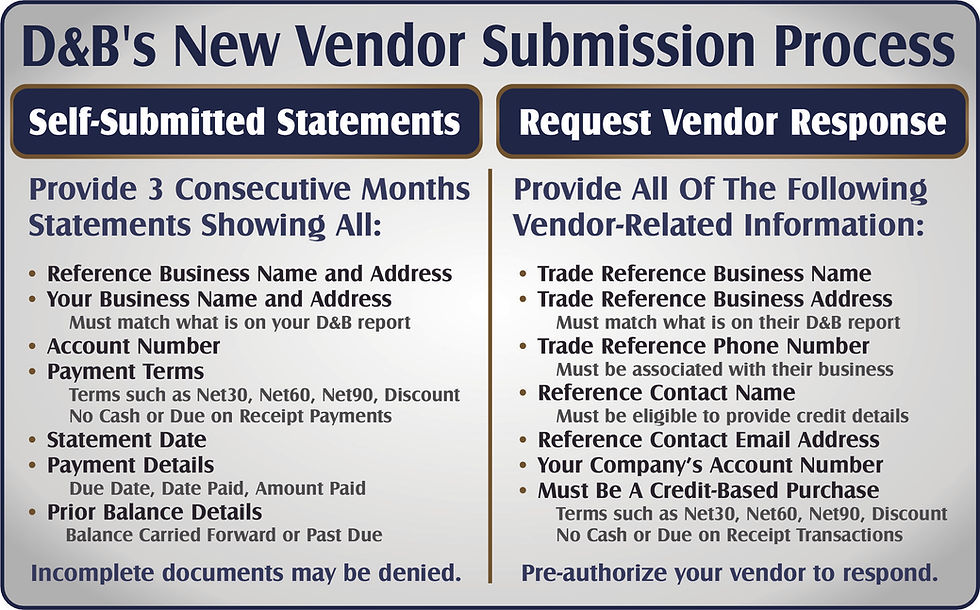
For all you Do-It-Yourselfers out there... D&B has implemented a new process that makes it easier than ever. And the best part is, you may now be able to submit your business credit card statements for verification!
A New Way to Add Payments To Your DNB
Step 1: Make A List
Make a list of every business (no matter how large or small) that you have made a payment to or a purchase from in your company's name at least ONCE in the past 12 months. How you generate that list doesn't matter, but you can:
Download a vendor list from your bookkeeping software
Pull one invoice out of every folder in your Payables file
Scour through company bank or credit card statements
Pull receipts out of your glove box or project folder
Step 2: Do Your Research
You'll need some basic information when you start the upload process, so I recommend you get this taken care of before you lay out the money for the required service:
Gather the vendor's business name, physical address, and phone.
Search D&B's website for the vendor's business.
Make sure the address and phone matches D&B's data.
Make sure it's a headquarters or single location.
If the phone number is different, jot down the number D&B has .
Search for your vendor in D&B's Business Directory to see what industry they are in.
That's the industry where you'll see them when they get added.
FOR UPDATED TIPS TO FOLLOW BEFORE SUBMITTING VENDORS
READ MORE: D&B's New Trade Reference Submission Process
Step 3: Contact Your Vendor To Pre-authorize the Release of Data
In some instances, you may want to contact your vendor's credit department and let them know D&B will be calling or emailing to gather your account history. Be sure to gather a direct email address for the credit or billing department, and let them know they are authorized to release that information. If your vendor is a small- to medium-sized company, you can usually ask who D&B needs to speak to when they call to verify payments. D&B will only speak to:
An owner, officer, or principal
Someone in the Billing, Bookkeeping, or Credit departments
Someone who has access to your account information
Can't be your sales rep or another point-of-contact
If your vendor is a large company where you have no direct point of contact, just make a note that you will be submitting "Billing Department" or "Credit Department" as your contact's first and last name.
Step 4: Order Your Monthly Credit Insights PLUS
If you don't already have an account, create one and order the Credit Insights PLUS.
I recommend the monthly version since you can usually get all of your vendors submitted and added within a couple of months. You can then downgrade to a free or reduced price version.
If you already have a Credit Insights FREE or BASIC service, you'll want to upgrade to the PLUS version when you are ready to submit your vendors.
Verify your business information
Add your credit card information
Submit your payment
Click to "Go to Dashboard"
Save, print, or export a first copy of the file for your records
Familiarize yourself with the various pages of the report
Step 5: Submit Your Vendors
When it's time to submit your vendors, I always recommend that you start with the ones you've spent the most with in any single transaction in the past year, but you also want to have a healthy mix of vendors from a variety of different industries.
Go to the Extended Data section
Under Regular Termed Payments, click on SELECT
Click on GET STARTED
Choose one:
Do you want to provide your existing vendor statements?
Select this if you have three consecutive months of statements
Do you want D&B to contact your vendor to gather the info for you?
Select this if you don't have consecutive statements but do have an extensive history that you want added into your file.
Choose one:
Are transactions recurring for purchases, payments or services?
Are transactions for a single purchase, payment or service?
Type in the business name and choose your vendor from the list.
Upload your invoices/statements for each vendor
Workarounds For Difficult Vendors
Not all vendors can be submitted to D&B for verification. Some banks, credit cards, insurance, utilities and large corporations cannot be submitted because they are either "autoreporters" or "decline to report". Only U.S.-based businesses or foreign businesses that have a U.S. base of operations can be used. Of course, all vendors need to have a full D&B file of their own just to be able to find them in D&B's system, but sometimes, even when you do find them, choosing the right vendor isn't easy!
If your vendor doesn't come up or there are multiple choices under the same name —
• Narrow it down by the state
• Or the address
• Sole proprietorships can be searched by the owner's name
If your vendor is a branch, subsidiary or division —
• You may not be able to submit a branch or subsidiary location
• Search using an alternate name
• Search using an alternate phone
• Search Google for the vendor's corporate headquarters or parent company
If a vendor can't be submitted —
• Search for alternates at same phone number
• Skip them and go on to the next vendor
• Call me to see if I can help
Step 6: Submit Your Bank and Credit Card Statements
Along with your vendors and suppliers, D&B now allows companies to submit their business bank account and business credit card statements for verification. Submit them the same way as outlined above for your vendors but be sure to identify them as bank or credit cards.
Step 7: Track And Save Your Progress Daily!
It is super important that you track your progress daily. While it may take D&B several days to get started on your vendors, once started, progress usually rolls along at a steady pace. If you did your homework (research) earlier, you should be able to identify the payment history (based upon their industry) as it flows into your credit report. If you check the "accepted" vendors against the added payments daily, you can usually see which vendor is reporting what amount and the payment status.
Step 8: Resubmitting Declined Vendors
D&B will decline to accept some of your vendors. I always recommend that you reattempt the vendor for a second time, but almost never for a third time. There are about 45 reasons why vendors can get declined, but D&B isn't going to tell you why your vendor was declined. The most common reasons are:
The vendor auto-reports to D&B (You can re-use that slot for another vendor)
The vendor refuses to provide credit information about their customers
They are already on D&B's "do not call" list
D&B has payment history from that vendor that was previously auto-reported
It may flow in automatically later.
The vendor provided suspicious or incomplete payment info
Step 9: Cancelling The Credit Insights PLUS Service
The monthly Credit Insights PLUS is intended to be used for a minimum of three months, but that doesn't mean you can't cancel the service after just one or two. I recommend that you start the cancellation process at least 10 days prior to the next billing because it sometimes takes a while to be cancelled.
Step 10: Keep Up The Good Work
Don't give up, and don't get frustrated. Adding just one vendor can boost your scores and ratings by up to 90%, so every tiny bit of progress is worth it. If you are having problems submitting a specific vendor or need assistance, don't hesitate to give me a call. I can walk you through the process over the phone, explain what's causing the problem, or even take over the job for you.
Step 11: Spread That Good Data Around!
Once you have finished adding your existing payment history to D&B, consider doing the same for your Business Experian report. Their process is a lot easier and cheaper than D&B. Keep in mind, however, Experian will only add payments from vendors who agree to report on all of their customers and will re-report as agreed.
Step 12: Call Me If You Need Help!
If you have any questions, need a quick walk-thru of your D&B report, or would like my assistance in setting up Credit Insights PLUS so you can add your vendor payment history to your file on your own, feel free to reach out to me directly. I can set it up for you or walk you through the set-up process in less than five minutes — free of charge!
Does this seem like a lot of work? Don't forget, my $99/month Powerboost service includes everything mentioned in the above tips and so much more! If you don't have the time, knowledge, energy or stick-to-it-iveness — give me a call.
Adding payment history to the D&B file is just a very small part of what I do every single day for my clients, and yes, I actually LOVE doing it!


Comments